
How to Enable Two-Factor Authentication
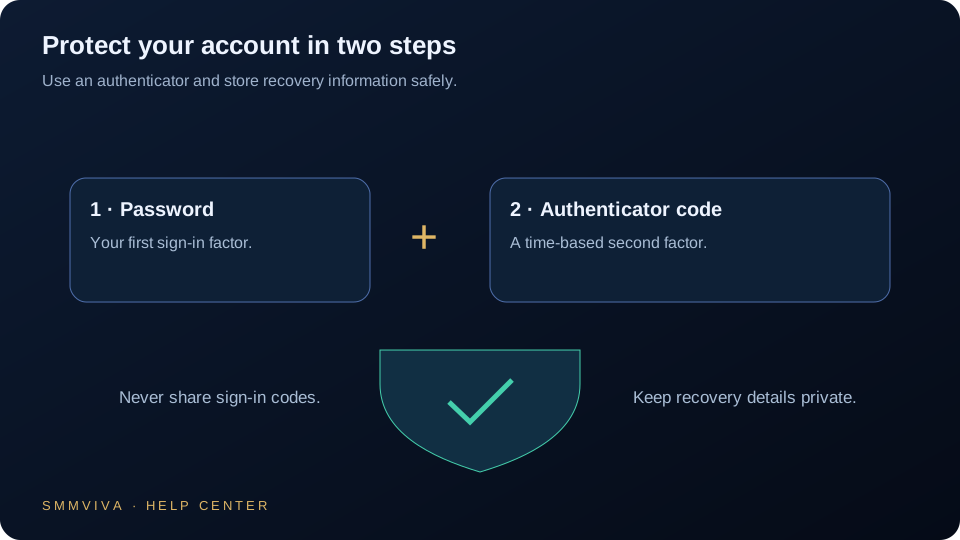
Two-factor authentication (2FA) adds a second verification step to your login, typically a 6-digit code from an authenticator app. Enabling 2FA is the single most effective step you can take to protect your SMMViva account and wallet balance.
Why 2FA Matters for SMM Panel Accounts
SMM panel accounts hold wallet credit and access to live order management. A compromised account can drain your balance and place unauthorized orders instantly. 2FA makes this effectively impossible even if your password is leaked.
- ✓Password leaks are common; 2FA protects you even when your password is exposed.
- ✓Attackers who capture your password still cannot log in without the time-based code.
- ✓All wallet withdrawal requests require 2FA confirmation regardless of session state.
- ✓2FA is required for Enterprise accounts and optional but strongly recommended for all plans.
Setting Up 2FA with an Authenticator App
SMMViva uses TOTP (Time-based One-Time Password), compatible with Google Authenticator, Authy, Microsoft Authenticator, and any standard TOTP app.
Save your backup codes in a password manager or print them and store them physically. Losing both your phone and your backup codes means permanent account lockout; we cannot bypass 2FA without verification.
Lost Access to Your 2FA Device
If you lose your phone or uninstall your authenticator app without backing up, you can regain access using your backup codes or through identity verification via support.
- ✓Use a backup code: enter it in the 2FA code field during login; each code works once.
- ✓If you have no backup codes: open a support ticket from a different device and request 2FA reset.
- ✓Identity verification required: support will ask for account registration details before resetting 2FA.
- ✓Recovery takes up to 24 hours and requires manual verification; there are no shortcuts.
Disabling or Changing Your 2FA Device
You can disable 2FA or switch to a new device from Dashboard > Settings > Security, as long as you have access to your current authenticator app.
- ✓Changing phones: set up 2FA on the new device first before removing it from the old one.
- ✓Using Authy: Authy supports multi-device sync; add your new phone via Authy account settings.
- ✓Disabling 2FA: requires your current 2FA code to confirm the action; this protects against attackers disabling it.
- ✓Enterprise plan users cannot fully disable 2FA; it can only be changed to a new device.
Protect Your Account and Balance
2FA takes under 2 minutes to set up and permanently secures your account against credential theft. Once enabled, every login from an unrecognized device requires your phone. Combine 2FA with a strong unique password and IP whitelisting on your API keys for a fully hardened account.
Join thousands of resellers and agencies using SMMViva to grow faster every day.